Quickstart
This guide takes you from a fresh install to launching your first game. It assumes you already completed Installation.
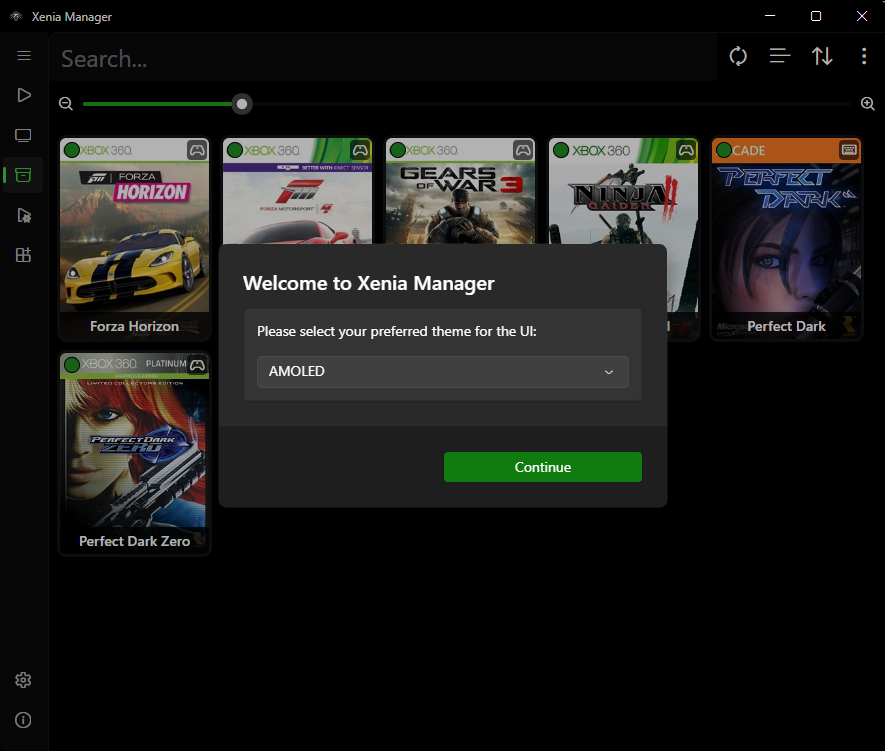
1. Launch Xenia Manager
Run XeniaManager.exe. On the very first startup the app creates its Config/ folder - Games/, Logs/, Cache/, and Emulators/ appear as needed (library load, logging, artwork downloads, emulator installs) - and shows the main window with an empty Library.
If the window is blank, that is normal - you have not installed Xenia or added games yet.
2. Install Xenia (1-Click Setup)
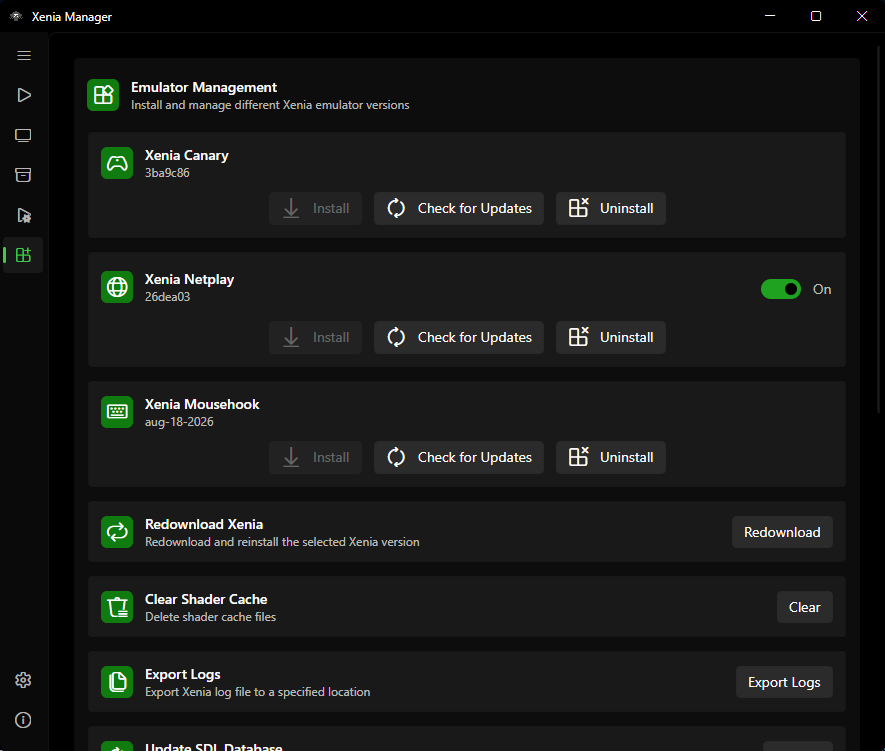
- Open the Manage page (sidebar → Manage).
- Pick a variant to start with: Xenia Canary is the recommended default. Add Mousehook if you want keyboard-and-mouse support, Netplay if you want online multiplayer.
- Click Install for that variant. The Manager downloads the build (Netplay offers stable or nightly channels, Mousehook offers Standard or Netplay channels - see Manage Xenia) into
Emulators/<Variant>/. - Wait until the version label shows an installed version number instead of "Not Installed".
Tip
Leave automatic update checks on (default). The Manager will badge the Manage page when a newer Xenia build is available. Details in Manage Xenia.
3. Add Games to the Library
- Place your legally owned Xbox 360 dumps where you want them (the default
Games/folder next to the executable works, or any folder you prefer). - Open the Library page → Options (or Library settings) → Scan Directory and point it at your games folder.
- The Manager parses each file (ISO, XEX, STFS/SVOD, ZAR, and similar Xbox/Xenia formats), looks up the title and artwork from the database (or embedded artwork in the file), and adds entries to
Config/games.json. - If a multi-disc game is detected, you will be asked whether to merge the discs into one entry (you can auto-merge in the future via
Auto-Merge Multi-Disc Gamesin settings - see Manager Settings).
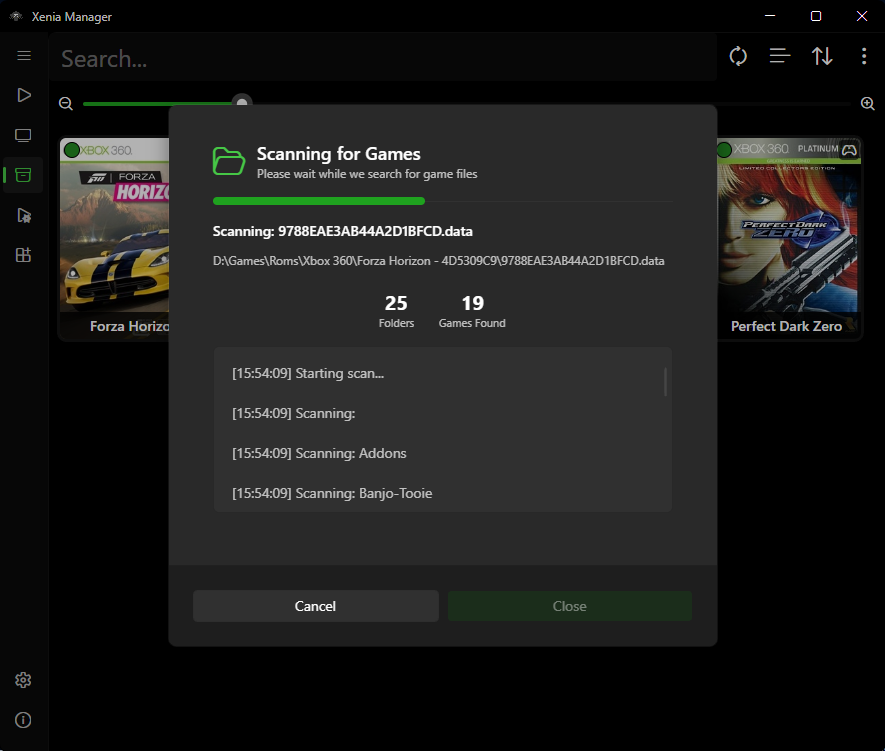
Supported inputs include disc images and extracted formats handled by the built-in file parsers (ISO/XISO, XEX, STFS, SVOD, ZAR, and related Xbox 360 containers). If a game shows as "Unknown Game", see Library and Troubleshooting.
4. Check Compatibility (Optional but Recommended)
Each library tile/row can show a compatibility rating pulled from the compatibility database. Before launching an unfamiliar title, glance at the rating - it tells you whether the game is expected to boot, run with issues, or not start at all.
Ratings come from the Canary/Mousehook/Netplay compatibility databases and are cached locally. They are advisory, not guarantees.
5. Launch a Game
- Double-click a game tile (if double-click-to-launch is enabled) or use the tile's launch action, picking which disc to start for multi-disc games (the Manager remembers
last_played_discand pre-selects it next time). - A loading screen shows while Xenia starts (configurable - see Manager Settings). Playtime tracking and
last_playedtimestamps update automatically. - Game output and exit codes are captured; if the game crashes, check the per-emulator
xenia.logand the ManagerLogs/folder as described in Troubleshooting.
6. What to Do Next (Pick Your Path)
| Goal | Go to |
|---|---|
| Install DLC / Title Updates without opening Xenia | Content guide |
| Apply 60 FPS / bugfix / enhancement patches | Patches guide |
| Fix graphics, audio, or performance for one game | Xenia Settings (try community optimized settings first) |
| Set up keyboard-and-mouse controls | Mousehook guide |
| Back up or move profiles and saves | Profiles & Saves |
| Launch games from Steam / Big Picture | Steam Shortcuts |
| Change theme, language, or library view | Manager Settings |
| Play on a TV with a controller | BigScreen |
First-Run Checklist
-
.NET 10 Desktop Runtimeinstalled (Installation) - At least one Xenia variant installed (Manage Xenia)
- Games folder scanned, titles and artwork look right (Library)
- One game launched successfully (playtime increments on the tile)
- (Optional) Content and patches installed for that game
- (Optional) Steam shortcut created