Patches
Game patches (60 FPS mods, bug fixes, enhancements, Netplay compatibility patches) come from two community databases and are managed per game. Xenia Manager downloads them and lets you add, edit, and remove entries in one unified window - including duplicate patch names for different patch versions.
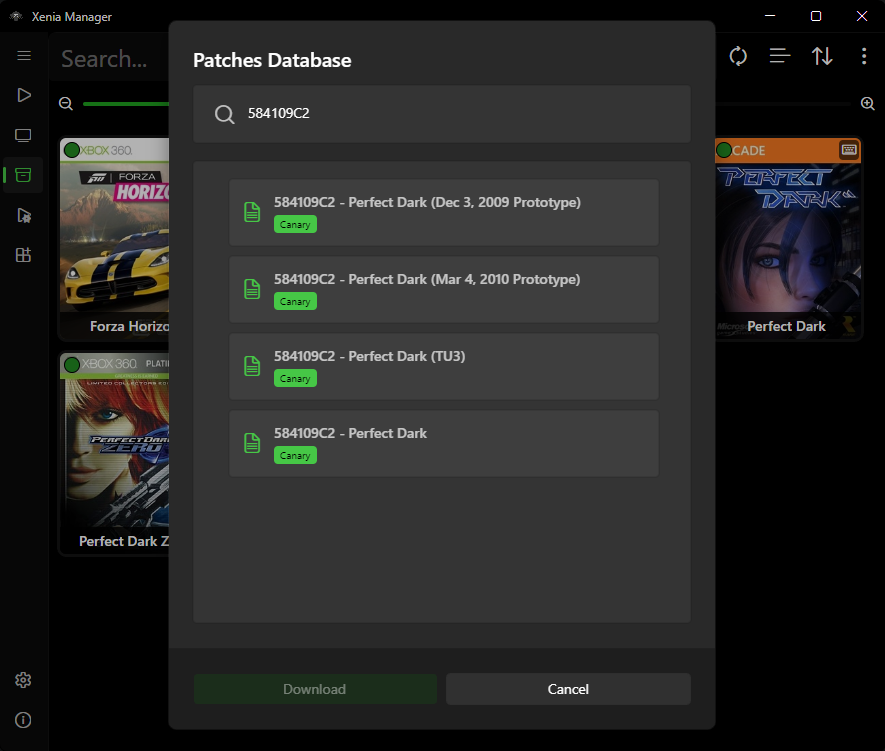
Patch Sources
| Database | Used by | Upstream |
|---|---|---|
| Canary patches | Xenia Canary and Mousehook | Canary patch collection (mirrored through the Manager database) |
| Netplay patches | Xenia Netplay | Netplay patch collection (mirrored through the Manager database) |
The Manager caches the patch lists as canary_patches.json and netplay_patches.json under Cache/Database/ and refreshes them from the network. Patch files land in the variant's patches/ folder (e.g. Emulators/Xenia Canary/patches/ as .patch.toml files). Only patches in the folder of the variant the game actually launches with take effect.
Patch Downloader
- Select a game in the Library.
- Open the Patch Downloader (right-click → Patches → Download, or the patch window's download action).
- The list shows patches published for that game's Title ID. Select the ones you want.
- Download. Files are written to the correct variant's
patches/folder.
If no patches are listed, none are published for that title in the selected variant's database - the Configurator below is still available for hand-written patches.
Install Local, Add Additional, Export, Remove
Beyond downloading, the per-game Patches menu covers the full file lifecycle:
- Install Local Patch - pick a
.tomlpatch file from disk. If its Title ID does not match the game (including alternative IDs), the Manager asks for confirmation before installing. - Add Additional Patches - merges entries from a second
.tomlfile into the already-installed patch file. Requires a patch to already be installed; fails with an incompatibility message when the files do not match. - Export Patch - copies the game's current
.patch.tomlto a location you choose (save-file picker,*.toml/*.patch.toml). Shows a warning when no patch is installed. - Remove Patches - deletes the game's patch file via
PatchManager.RemovePatchAsync.
Patch Configurator
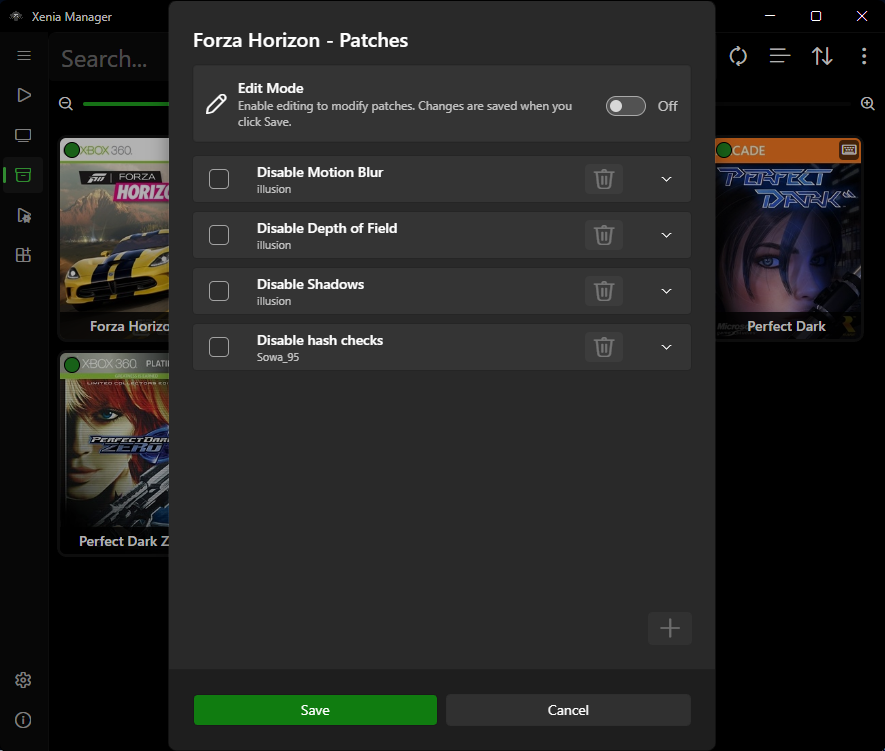
The Configurator is the per-game patch manager:
- Enable/disable individual patches (disabled entries stay on disk but are ignored by Xenia).
- Add a new patch from a
.patch.tomlfile or by pasting patch text. - Edit an existing patch (version pinning, addresses, notes). Useful when a patch update breaks a specific game version and you want to keep the old one.
- Remove patches you no longer want.
- Duplicate patch names are allowed - the list is keyed by more than the display name, so you can keep e.g. "60 FPS v1" and "60 FPS v2" side by side and toggle between them.
Changes apply the next time the game launches; no emulator restart beyond relaunching the game is needed.
Matching Rules (Why a Patch May Not Appear)
Patches match on Title ID (local installs also accept the game's alternative IDs). Common reasons a patch you expect is missing:
- The patch was published for a different Title ID (different region/edition) than your dump. Check your IDs in the Details editor.
- You are looking at the wrong variant's database (Canary list vs. Netplay list).
- The local patch cache is stale - refresh/re-download the list.
Tips
- Enable one gameplay-altering patch at a time when testing (e.g. 60 FPS + enhancement packs can interact).
- Keep the downloader's versions and your prospective optimized settings in sync - some optimized presets assume a specific patch is active, and vice versa.
- Back up hand-edited
.patch.tomlfiles before updating the whole set; the downloader may overwrite same-named files.