Profiles & Saves
Xenia (the emulator) has its own Xbox 360-style profile (gamertag container) and per-game saves. Xenia Manager adds import, export, editing, and automatic backups on top - plus XUID-aware save handling so saves survive profile moves.
Concepts
- Profile - the emulator-side Xbox 360 profile (gamertag, settings, achievements state). Stored per emulator variant alongside its
xconfig.settingsand profile data. - Save - per-game save data, tied to a profile's XUID (Xbox User ID). Moving a save between profiles without fixing the XUID makes the game ignore or reject it - the Manager handles this on import/export.
- XUID (
Emulator → Profile XUID, default"B13EBABEBABEBABE") - the ID stamped on saves. Change it only when you know why (e.g. matching saves from another setup).
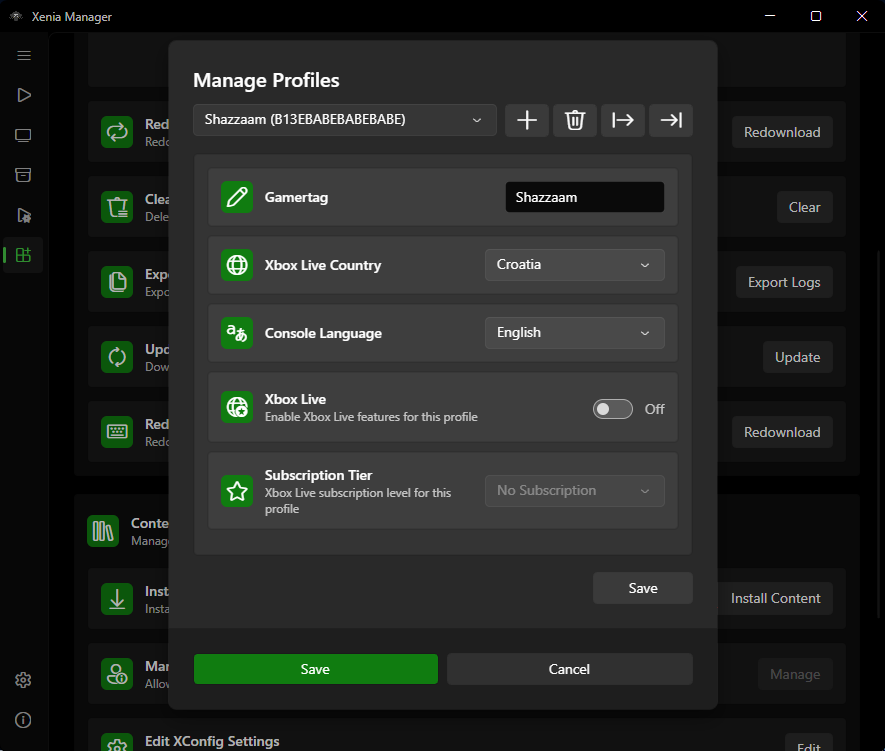
Manage Profiles
Open profiles via the Manage page or Library context actions (exact entry point depends on version - look for Manage Profiles):
- Import a profile from disk (e.g. from another PC or a backup) into the selected emulator variant.
- Export the current profile to a file for safekeeping or transfer.
- Edit profile basics (name and similar fields where supported).
- Automatic save backup (
Emulator → Profile → Automatic save backup, default off): when enabled, the Manager snapshots the profile's saves after the emulator exits, so a corrupted save does not destroy hours of progress. Backups accumulate underBackup/- prune them occasionally.
Tip
Enable automatic save backup before experimenting with patches, mods, or unstable builds. Those are the situations that most often corrupt saves.
Import and Export Saves
Saves are managed per game:
- Find your game in the library, right click, Content → Saved Game.
- Select your profile and then right click on the files list..
- Export Saves: writes the game's saves (with XUID metadata) to a folder/file you choose. Copy that to another PC or archive it.
- Import Saves: reads a previously exported save, remaps the XUID to the current profile when needed, and places it where the emulator expects it.
The Manager validates the save format on import (Title ID must be valid 8-character hex) - but it does not cross-check the save's game against the game you import into, so double-check you selected the right game first.
Moving to a new PC
- Export the profile and the saves for the games you care about.
- On the new PC, install the same Xenia variant, import the profile first, then import each game's saves.
- Launch each game once to confirm the saves load before deleting the old copies.
Files and Locations
- Active profile and save data live inside each variant's folder (
Emulators/<Variant>/) and the Manager'sGameData/tree - always transfer via Import/Export rather than copying raw folders, because XUID remapping and path fixups happen during the managed operation. Backup/next toXeniaManager.exeholds automatic profile/save backups (when enabled) - timestamped, safe to copy elsewhere.Config/config.json.backupis a separate automatic backup of Manager settings (not game saves).
Troubleshooting
- Save does not appear in-game after import - (1) confirm the Title IDs match (right region/edition), (2) confirm you imported into the same variant the game launches with, (3) check whether the game needs its TU installed before it recognizes the save format.
- Profile import succeeded but achievements/settings reset - some profile fields are version-specific; mixing profiles across very different Xenia builds can drop data. Keep a pre-import export as a fallback.
- Backup folder is huge - automatic backups are never pruned by the app. Delete old timestamped backups you no longer need.