BigScreen Mode
BigScreen is the fullscreen, controller-friendly launcher for TV / couch use. It is a separate application project (XeniaManager.BigScreen) sharing the same core library, library data (Config/games.json), and emulator installs as the desktop app.
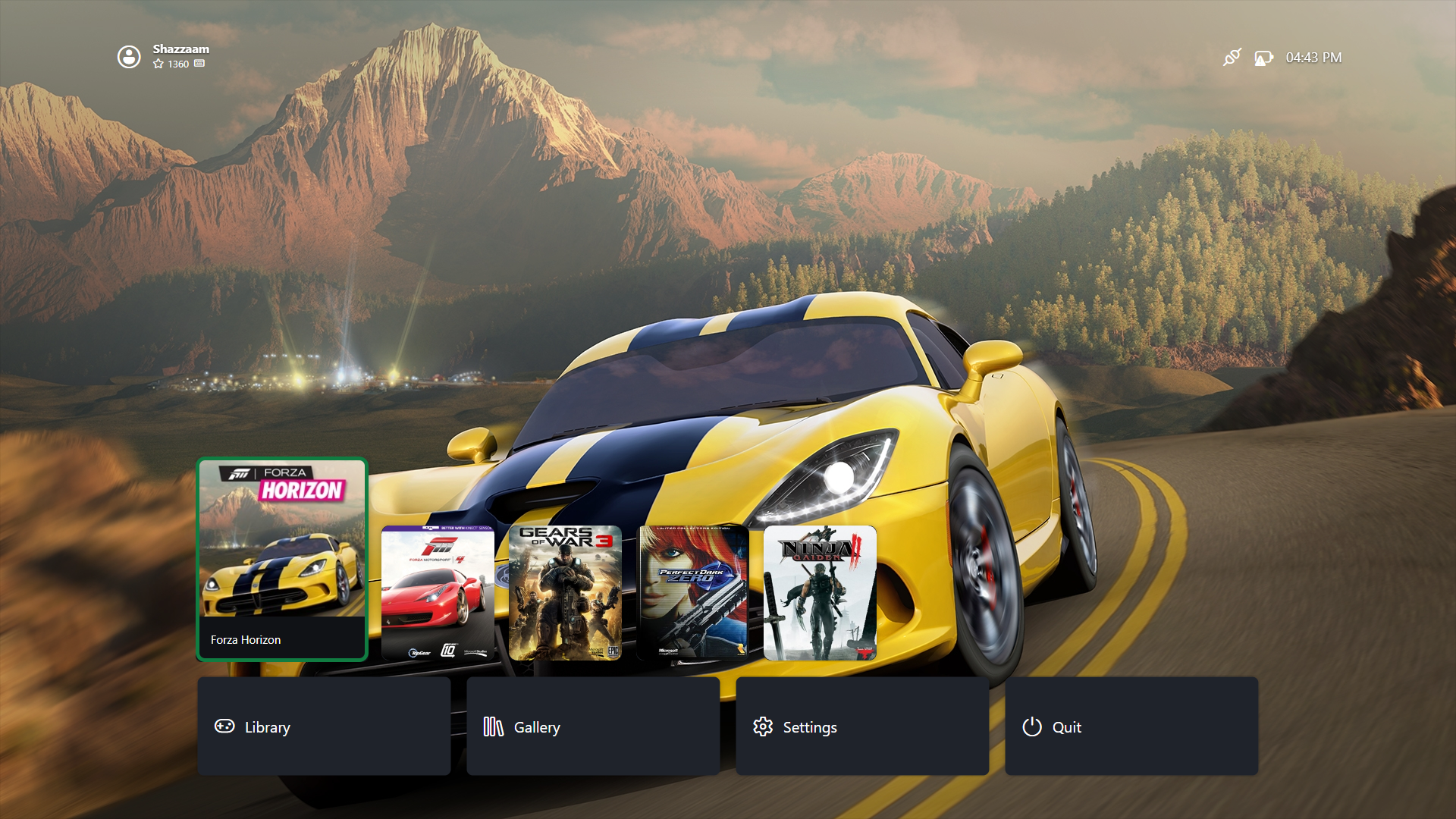
Launching and Startup Options
- From the desktop app: look for the BigScreen launch action (toolbar/page action depending on version).
- Start in Big Screen (
General → Start in Big Screen, default off): boots straight into BigScreen instead of the desktop window. See Manager Settings. Turn this on for a dedicated emulation box; keep it off while you are still configuring things, since settings editing is faster in the desktop UI. - Exiting BigScreen returns you to the desktop (or exits entirely, depending on how it was launched).
What You Can Do There
- Browse the same Library (artwork grid, search/sort where exposed).
- Launch games with their assigned variants - per-game settings, content, and patches apply exactly as in desktop mode.
- Basic management (content/patch/settings access depends on version - the desktop app remains the full-featured surface).
- BigScreen-exclusive views: the global Gallery (every screenshot from every installed variant in one grid, sortable/filterable) and the per-game Screenshots and Achievements panes in Game Details. On desktop there is no gallery viewer - right-click → View Screenshots just opens the screenshots folder (see Content).
Prefer the desktop app for: first-time Xenia installation, patch editing, config tuning, profile/save surgery, and Steam shortcut creation. Use BigScreen for: launching and playing.
BigScreen settings
The Settings screen covers: library layout (Carousel/List), card artwork (BoxArt/Icon), clock format (12h/24h), UI scale (25–200%), launch behavior (return to desktop on quit, fullscreen launches, start in BigScreen), profile rotation display, background (dynamic artwork / gradient / solid / custom image, accent color, vignette), controllers (list + primary), and per-version XConfig resolution. Profile management (create/rename/configure/delete/import/export) is the first Settings row and is also reachable from the profile picker.
For how the BigScreen screens work internally (Dashboard, Library, navigation, modal stack), see the BigScreen deep dive.
Tips
- Set up everything in desktop mode first (install emulators, scan library, verify one game boots), then switch to BigScreen for daily use.
- If BigScreen shows an empty library, the desktop app would too - rescan in desktop mode (Library); both read the same
games.json. - Dashboard preferences persist to
Config/dashboard-settings.jsonnext to the other config files.
Troubleshooting
- BigScreen starts but games fail to launch - diagnose in desktop mode where error output and logs are visible (Troubleshooting), then return to BigScreen.