Mousehook (Keyboard & Mouse)
Xenia Mousehook is the Xenia Canary fork with keyboard-and-mouse support. Xenia Manager integrates it: per-game variant assignment, bindings management, and a graphical controls editor backed by a compatibility database.
Prerequisites
- Install the Xenia Mousehook variant on the Manage page (executable
xenia_canary_mousehook.exe, configxenia-canary-mousehook.config.toml, plusbindings.ini). - Assign the game to Mousehook: open the Game Details Editor → set Xenia version to Mousehook. Only games launched with this variant read the bindings.
- Check the built-in Mousehook compatibility database (per-title support level, cached under
Cache/Database/) - not every game has bindings, and quality varies by title.
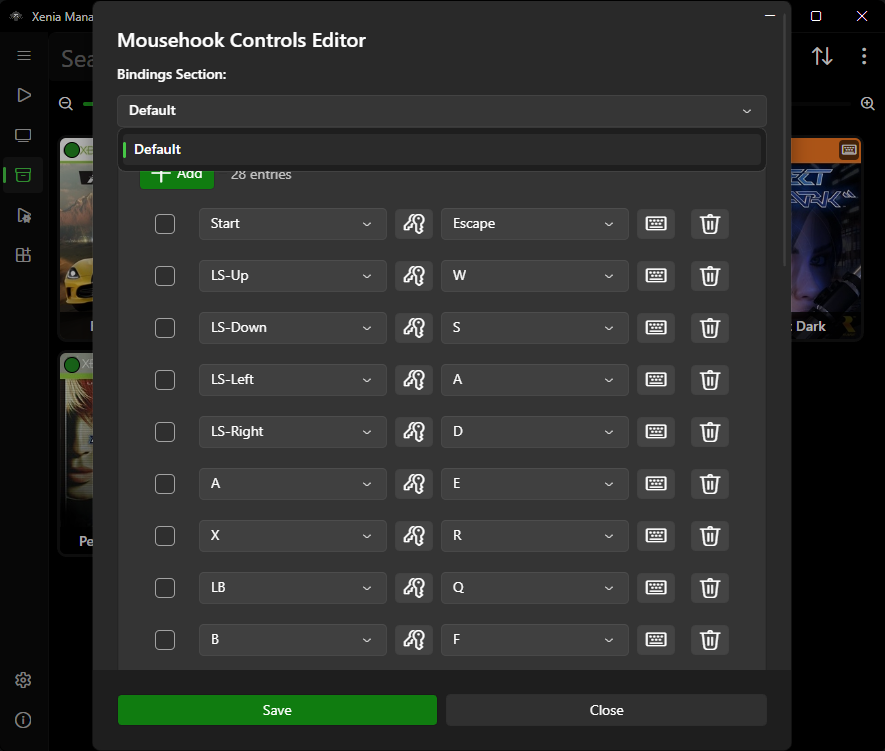
Mousehook Controls Editor
Open it from the game's right-click menu (Mousehook Controls Editor). The editor works on bindings.ini semantics without requiring you to hand-edit INI text:
- View the current bindings for the selected game (which keyboard key / mouse axis drives which emulated controller input).
- Rebind keys by activating the capture control and pressing the new key - the Manager uses its cross-platform Avalonia-based input listener for reliable keyboard/mouse capture.
- Reset a single binding or the whole profile to the defaults shipped in the upstream
bindings.inireference. - Save. The result is written where the Mousehook build reads it for that game.
Note
Bindings are inherently per-game: aiming sensitivity and button layouts that feel right in a shooter are wrong for a racing game. Avoid copying one game's bindings file onto another title unless you intend to retune from scratch.
Input Listener Details
The "cross-platform input listener" mentioned in the feature list is the capture backend inside the Manager (keyboard/mouse detection via Avalonia, gamepad info via SDL3 bindings). You encounter it in two places:
- The Mousehook editor's press-a-key capture.
- Any shortcut / hotkey capture in settings dialogs.
If key capture misbehaves (wrong key recorded, clicks not detected), close overlay software that intercepts input (macro tools, some screen recorders) and retry - see Troubleshooting.
Workflow: Setting Up a New Game
- Confirm the title has Mousehook support in the compatibility data.
- Assign the game to the Mousehook variant.
- Open the Controls Editor, load defaults, then rebind movement/aim/fire to your preference.
- Launch and test in-game. Adjust sensitivity in-game first (where the title offers it), then fine-tune bindings - in-game sensitivity and binding scale multiply.
- Optionally apply an optimized settings preset for the title; some presets assume Mousehook builds.
Troubleshooting
- Bindings have no effect - the game is almost certainly not launching with the Mousehook variant. Verify the per-game assignment and that
bindings.iniexists inEmulators/Xenia Mousehook/. - Mouse works but keyboard does not (or vice versa) - check for conflicting per-game config overrides capturing the device exclusively, and retry capture with overlays disabled.
- No bindings published for my game - start from the upstream default
bindings.iniand build bindings manually; consider contributing them back to the Mousehook project.